A few months ago, I was going through photos from a short trip and wanted to find one particular picture I had taken at a small café. I remembered the place clearly, but I had no idea when I took the photo or what I had named it.
I opened the Photos app, checked the photo information, and there it was: the exact location on the map. That small feature has saved me more than once since then.
If you take lots of travel photos, property photos, family pictures, outdoor shots, or work-related images, knowing how to geotag photos on iPhone can make your photo library much easier to organize.
There is also a privacy side that many people don't think about until they accidentally share a photo containing location information.
What Does It Mean to Geotag a Photo on iPhone?
A geotag is simply location information attached to a photo. When your iPhone Camera has permission to use Location Services, the phone can determine where a picture was taken and store that location as part of the image metadata.
You normally don't have to type the location yourself. Your iPhone handles the process in the background while you're taking pictures.
For example, imagine you're visiting a famous historical place and take 20 photos during your visit. If location tagging is enabled, your iPhone can save the location with those photos.
Later, you can open the Photos app and see where those pictures were taken. The location isn't printed directly on the image. Instead, it is stored as metadata associated with the photo.
How to Geotag Photos on iPhone Automatically
The easiest way to geotag photos on iPhone is to allow the Camera app to access your location. You don't normally need a separate GPS camera application for standard photo geotagging.
Step-by-Step Guide
- 1. Open Settings: Open the Settings app on your iPhone.
- 2. Open Privacy & Security: Go to Privacy & Security and then select Location Services.
- 3. Check Location Services: Make sure Location Services is enabled.
- 4. Find Camera: Find Camera in the list of apps and allow it to use your location.
- 5. Take a New Photo: Open Camera and take a picture. Your iPhone can now save location information with the new photo.
How to Check If a Photo Is Geotagged
Before changing anything, it's a good idea to check whether a photo already contains location information.
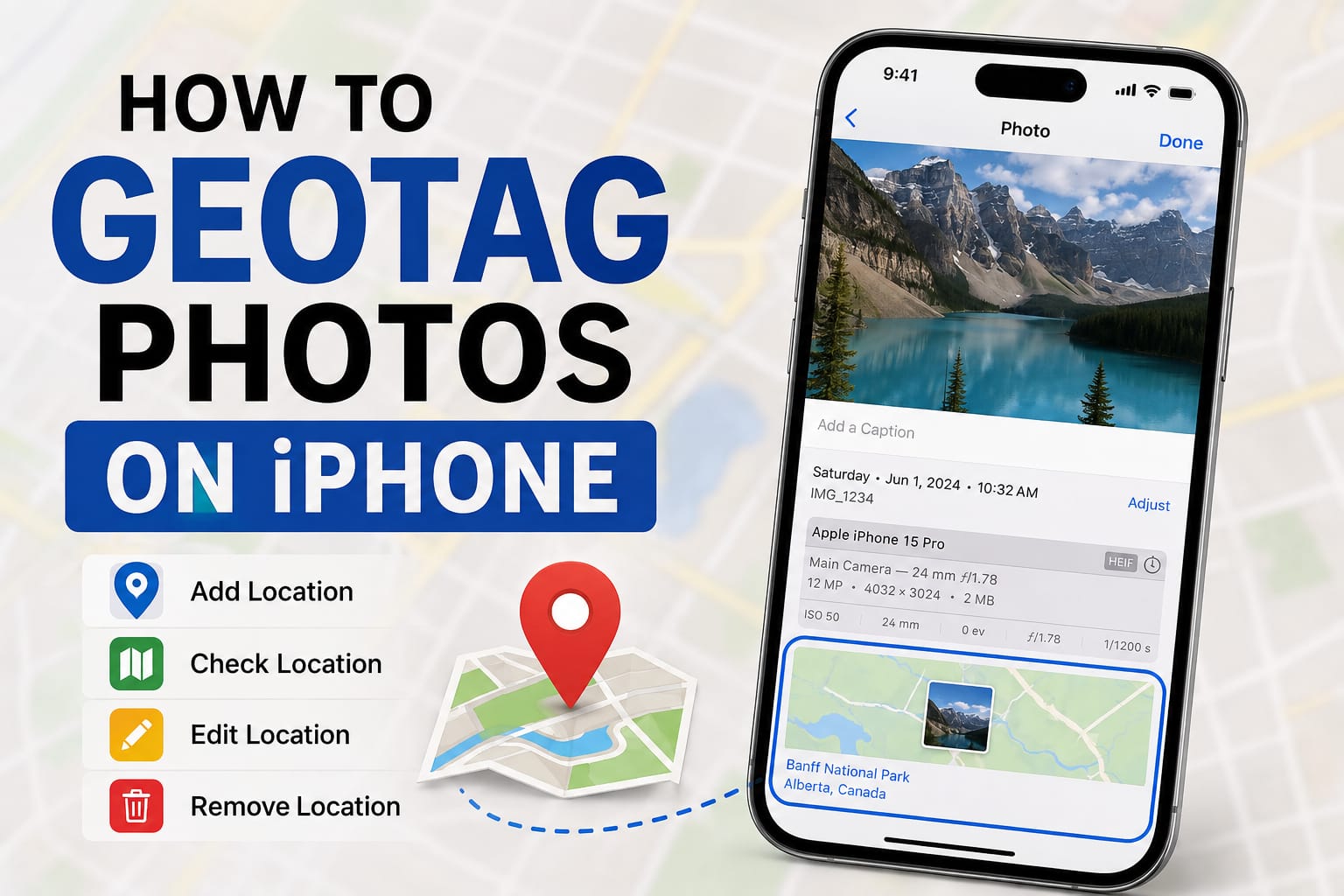
Open the Photos app and select a picture. Then swipe up on the photo or tap the Info (i) button.
If location data is available, you'll see location information or a map along with other photo details such as the date, time, device and camera information.
This is also a simple way to test whether your Camera location settings are working correctly.

How to View Geotagged Photos on a Map
One of the most useful things about photo geotagging is being able to explore your pictures based on where they were taken.
In the Photos app, you can use the map view to explore photos associated with different locations.
This becomes especially useful when you have hundreds or thousands of pictures from different trips.
Instead of scrolling through your entire library, you can use location information to narrow down pictures from a particular city, trip, or destination.
What If Your Old Photos Don't Have Location Data?
This is common with older photos, especially pictures imported from another phone, copied from a computer, scanned from physical photographs, or received from someone else.
The good news is that you can manually add or change the location of supported photos in the Photos app.
Open the photo, access its information, and look for the option to adjust its location. You can then search for the place where the photo was actually taken.
This can be useful for old vacation pictures, family photos, scanned images, and other pictures that never had GPS information.
Why Isn't My iPhone Adding Location to Photos?
If you've enabled location settings but new photos still don't show a location, there are a few things worth checking.
Camera Doesn't Have Location Permission
Go to Settings → Privacy & Security → Location Services and check the Camera permission.
Location Services Is Disabled
Even if Camera settings look correct, check the main Location Services setting. If it is disabled, apps won't be able to use location services.
You're Checking an Old Photo
Turning location access on doesn't automatically add GPS information to every photo you've taken in the past. Older images may need to be updated manually.
The Location May Not Be Perfect
Your iPhone uses available location information to estimate where you are. GPS availability, Wi-Fi, cellular networks and your surroundings can affect the result.
Photo location is useful for organizing pictures, but it should not be treated as a professional geographic measurement for situations that require survey-level accuracy.
Can You Add a Location to Photos Manually?
Yes. This is especially useful when you're organizing an older photo collection.
Select a photo in Photos, open its information and look for the option to adjust its location. Search for the correct place and select it.
If you're working with multiple photos from the same location, you may also be able to update selected photos together.
Just be careful when applying the same location to a large group of pictures. If those photos were taken in different places, adding one location to all of them can make your library inaccurate.
Real-World Uses for Geotagged iPhone Photos
Geotagging isn't only useful for travel photography. There are several practical situations where location metadata can help.
- Travel: Find pictures based on where you visited.
- Real Estate: Help organize property-related photos by location, while verifying the actual property address separately.
- Field Work: Keep track of where outdoor photos were captured.
- Events: Organize images from different venues and locations.
- Travel Content: Remember where specific shots were captured when creating future content.
The Privacy Problem Most People Forget
There's an important privacy consideration with photo geotagging. A photo can contain location metadata that isn't visible when you're simply looking at the picture.
For example, imagine taking a photo inside your home and sending the original image to someone. If location information is included, the image may contain information about where it was taken.
This doesn't mean you should stop using geotagging. It simply means you should understand what information you're sharing.
Protect Your Photo Privacy
Before publicly sharing a photo taken at your home, workplace, or another private location, check whether location metadata should be included.
How to Remove Location Before Sharing a Photo
If you don't want to share a photo's location, iPhone provides a built-in option when sharing photos.
Select the photo and tap the Share button. Then tap Options and look for the Location option.
Turn the location option off before sharing if you don't want the photo's location metadata to travel with the image.
This is a useful habit when sharing pictures publicly, sending photos to people you don't know well, or uploading images to websites.
How to Remove Location From an Existing Photo
You can also remove location information from an existing photo in the Photos app.
Open the photo, access its location information and choose the option to adjust or remove the location.
This can be useful when you've taken pictures at a private location and no longer want the geographic information attached to them.

Common Geotagging Mistakes to Avoid
Assuming Every Photo Has GPS Data
Not every photo will contain location information. Images imported from another device or older files may not have GPS metadata.
Forgetting About Privacy
Location information may not be visible in the image itself, but it can still be stored in the photo metadata.
Disabling Location Services Completely
Some people turn off all Location Services because they don't want photos geotagged. However, this can affect other location-based apps and features as well.
Trusting a Location Without Checking It
If location information is important, verify it. Photo metadata is useful, but it shouldn't replace professional geographic information when exact accuracy matters.
Adding the Wrong Location Manually
When organizing old photos, don't guess a location simply to make your library look complete. An incorrect location can be more confusing than having no location at all.
What About Photos Without GPS Data?
Some newer photo features can recognize landmarks or points of interest in images even when traditional location metadata isn't available.
This is different from geotagging. Geotagging stores geographic information with the photo, while visual recognition analyzes what is actually visible inside the image.
So an old picture of a recognizable landmark may still be searchable in useful ways even if the original image doesn't contain GPS data.
Frequently Asked Questions
Does iPhone automatically geotag photos?
iPhone can automatically save location information with new photos when Location Services is enabled and Camera has permission to access your location.
How do I check the location of a photo on iPhone?
Open the photo in the Photos app and swipe up or tap the Info button. If location information is available, you'll see it in the photo details.
Can I add a location to an old iPhone photo?
Yes. Photos that don't contain location information can be updated manually by adjusting their location in the Photos app.
Can I remove GPS data from an iPhone photo?
Yes. You can remove or change location information from supported photos, and you can also control whether location metadata is included when sharing a photo.
Is photo location information private?
Location metadata can reveal where a photo was taken. If you're sharing a photo publicly or with someone you don't know well, check the sharing options before sending it.
Should You Keep Geotagging Turned On?
For people who take lots of travel photos and want an organized photo library, geotagging can be extremely useful.
It gives you another way to find pictures, remember trips and organize large collections.
The important thing is understanding the difference between storing location information for yourself and sharing that information with everyone else.
If you like having location information available in your personal photo library, keeping Camera location access enabled can make sense. When you're about to share a sensitive photo, take a few seconds to check its location-sharing options.
Final Thoughts
The first time you notice a photo on your iPhone showing exactly where it was taken, it can feel like a small feature. After you've accumulated hundreds or thousands of photos, though, it becomes much more useful.
Geotagging photos on iPhone isn't really about adding a visible location label to your pictures. It's about keeping useful location information with your photos so you can organize, search and remember them later.
The key is knowing both sides of the feature. Use location data when it makes your photo library easier to manage, but remember that location is personal information.
Before sharing a photo taken at your home or another private place, take a moment to check whether its location should travel with it. That small habit lets you enjoy the convenience of geotagging without unnecessarily revealing where a photo was taken.